
Partnertap MCP
Unleash agentic co-selling
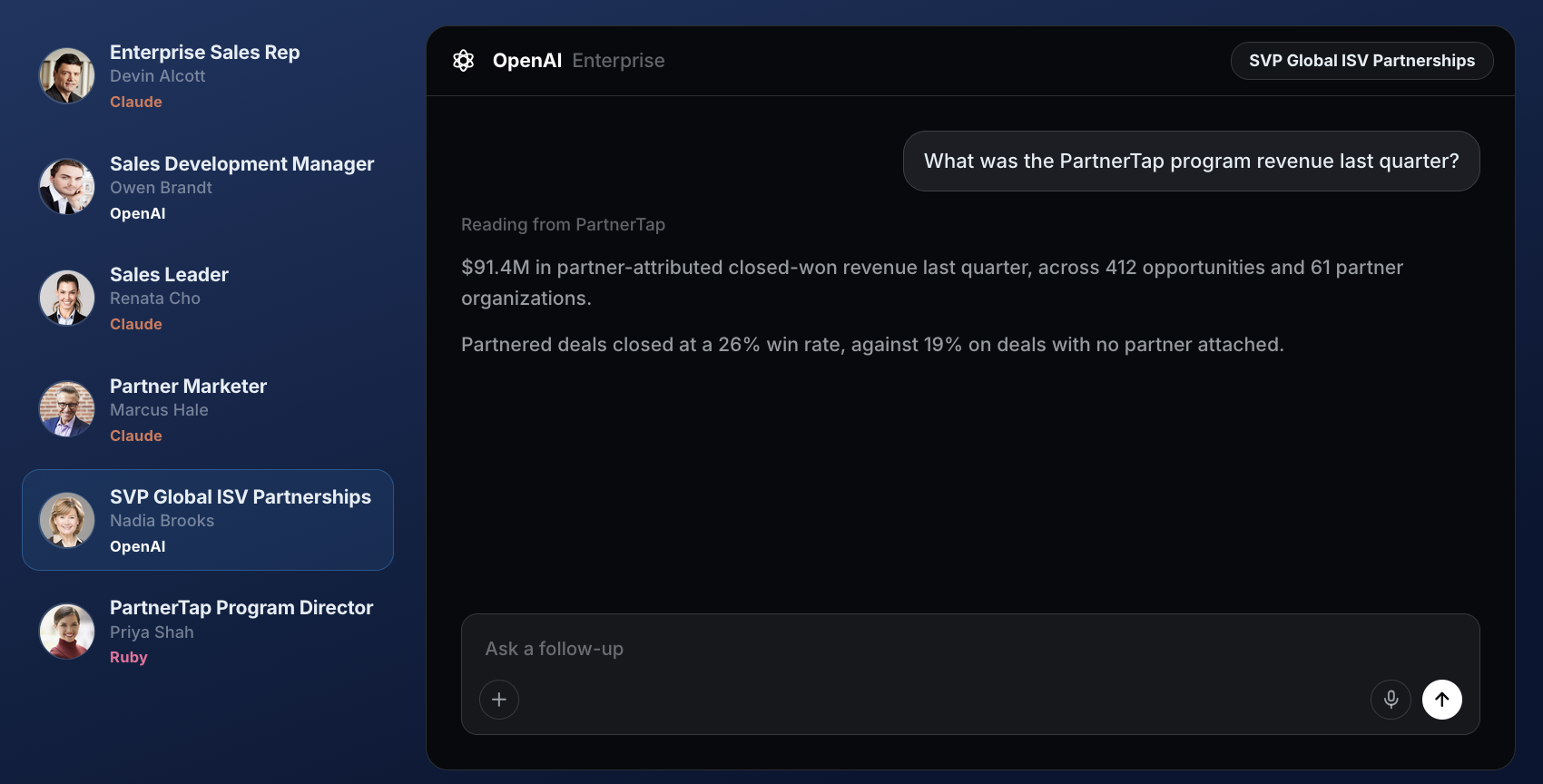
The PartnerTap MCP makes your mapped partner data, co-selling activity, and attribution reporting directly available to the AI tools your teams already use. Ask a question in plain language and get an answer grounded in partner-shared data and context. No exports, no BI request queue and no waiting.
Explore use cases:
Why use PartnerTap’s MCP for agentic co-selling?
Every company is racing to put AI in front of their sellers. But an agent that cannot see which partners share your customers, which deals partners could influence, or which motions actually produced revenue doesn’t have the whole picture.
PartnerTap is the system of record for multi-partner data: mapped accounts, product whitespace, co-selling engagement, and pipeline attribution across every partner. PartnerTap’s MCP gives teams access to this valuable partner data and context within their favorite agents and AI solutions so they can plan, coordinate and accelerate new business development, selling, and adoption motions with partners.
PARTNERTAP MCP CAPABILITIES
Ecosystem-aware agents
Make every agent partner-aware and smarter with data, insights, and context available through the PartnerTap MCP.
AI-ready multi-partner data
Every time a new partner is onboarded to your PartnerTap program their shared data is added into the ecosystem-mapped partner data around each customer, prospect, and opportunity. PartnerTap’s multi-partner mapped data is interconnected and structured for easy reading by LLMs.
Partner business context
PartnerTap’s agentic co-selling platform collects the important context about GTM strategies, CRM data, and partners and shares this through the MCP for richer analysis, insights and recommendations.
Native MCP support
PartnerTap is built natively for the assistants your teams already work with: Anthropic, Co-Pilot, Gemini, Glean, ChatGPT.
Enforces data visibility policies
PartnerTap is a data sharing compliance platform that enforces data sharing and data visibility policies across partners. The PartnerTap MCP enforces data visibility policies based on the deterministic rules setup in PartnerTap.
Unlimited MCP calls
Partner data and context from PartnerTap is meant to be used by sales, business development, and marketing teams. That’s why the Agentic Co-Selling Edition includes unlimited MCP calls.
Unlimited use cases
Adding the PartnerTap MCP to your favorite agents opens the door for unlimited strategic growth strategies: account planning, multi-partner sales motions, speed dating “co-sell” days, preparing for QBRs, executive round-tables, co-marketing campaigns, the list goes on!
Unlimited Users
Every edition includes unlimited users. Give every partner manager, partner sales manager, business development rep, account executive, marketer, and customer success manager access to PartnerTap and the valuable insights shared by your partners.
Unlimited Partners
Using PartnerTap with lots of partners builds up a valuable set of interconnected mapped partner data around your customers, prospects, and sales opportunities. PartnerTap is meant to be used with all your strategic partners, not just one type. That’s why every edition includes unlimited partners.
Unlimited Data & Reports
Why map accounts with partners if you can’t use the data and make it actionable? When you buy a paid edition of PartnerTap you get unlimited access to reports and all your data across all your partners. No caps on reports. No caps on report downloads.
We use PartnerTap to orchestrate our Power of Three program and run co-sell sales plays with, through, and across our partner ecosystem.”

Darryl Gray
SVP ISV Partner Management

Enterprise perspective on PartnerTap
What leaders say after rolling out PartnerTap
After using PartnerTap you’ll never go back to ad-hoc manual account mapping or one-off co-selling motions with partners. The rich insights, actionable data, and pipeline attribution reporting you get from PartnerTap will help you drive more revenue with partners. That’s why our customers bring us in everytime they move to a new company.
“PartnerTap is our most strategic vendor. Period.”

Eric McIver
Global Partner Solutions Director, Program and Operations, Lumen
“I wish we started using PartnerTap years ago!”

Whitley Turner
Data Partner Specialist, HPE
Want to scale?
See the leading multi-partner co-selling platform.
Invited by a partner?
Sign up for a free PartnerTap account.