
Analyze offline partner data
When you upload an offline partner sheet, PartnerTap automatically maps your partner’s accounts against your data and notifies you by email when the upload is complete. From there, you can view a summary of your overlap and run six out-of-the-box reports to find mutual customers, potential new logos, and more. Within each report you can sort, filter, and save views to surface exactly the accounts you need.
View your summary dashboard
- Click Partners in the left sidebar.
- Click Offline Partners, then click the History sub-navigation tab.
- Click a sheet name from the list to open it.
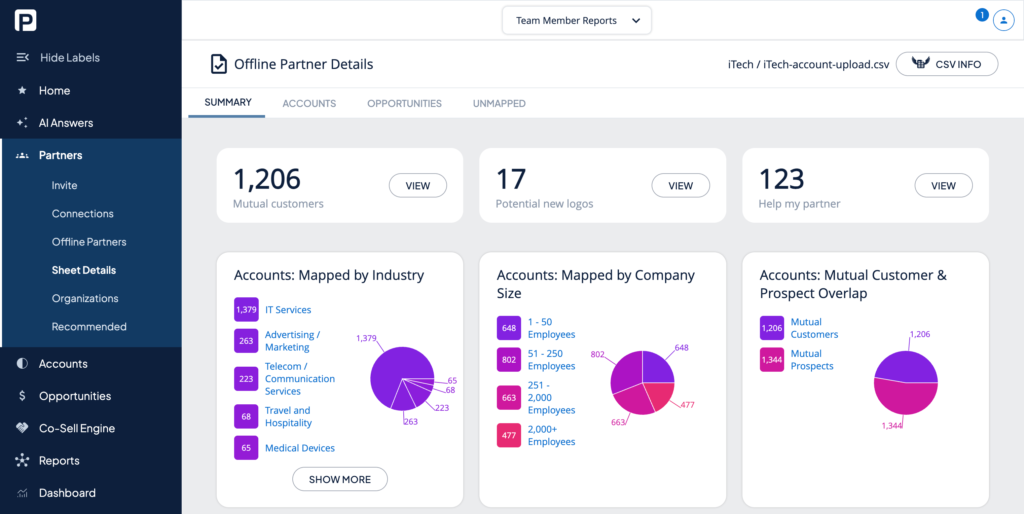
- This brings you to the Offline Partner Details page, with four sub-navigation tabs: Summary, Accounts, Opportunities, and Unmapped. The Summary tab shows your account overlap dashboard with mutual customer and prospect counts and breakdowns by industry, company size, and location.
View your Offline Partner reports
- From the Offline Partner Details page, click the Accounts sub-navigation tab.
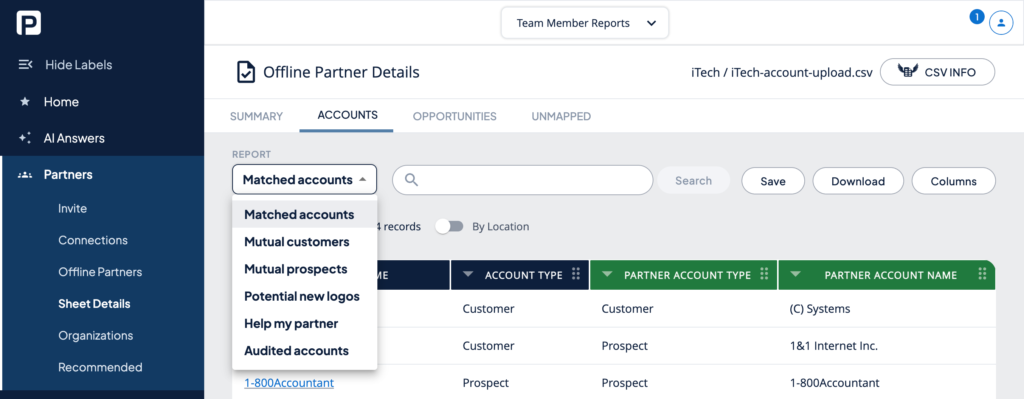
- Open the Report dropdown in the top left to switch between the six available reports. Each report provides a different view of how you and this partner could drive more business together.
Work with report data
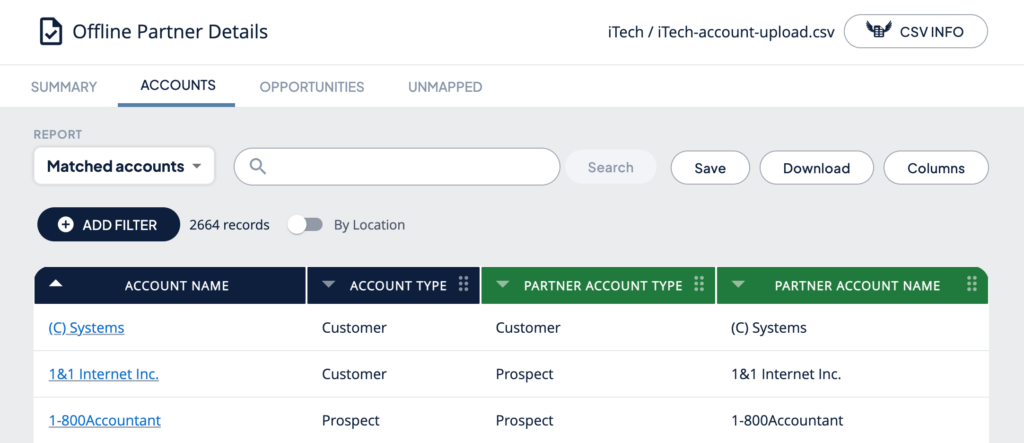
Within any report, use the toolbar above the data table to adjust your view:
- Report dropdown (top left): Switch between the six pre-built reports.
- By Location toggle: Filters results to accounts where address fields also match. Reduces match count but increases geographic precision.
- Add Filter button: Narrow results by any column in your data set. You can stack multiple filters.
- Save button: Opens the Save Report As dialog. Choose Save results as an action list to create a tracked list for co-sell action, or Save report to view later to preserve your current filters and sorting. Saved reports refresh with current data each time you return.
- Download button: Downloads your current report as a CSV for further analysis in Excel.
- Columns button: Show, hide, or reorder columns to get relevant data side by side.
Save your results
When you have filtered down to the accounts you want to act on, click the Save button and select Save results as an action list. Give your list a name and description, then click Save.
For next steps on using your Action List, see Create Action Lists (opens in a new tab).
Want to scale?
See the leading multi-partner co-selling platform.
Invited by a partner?
Sign up for a free PartnerTap account.