
Create Action Lists
With PartnerTap’s account mapping, you can simplify and bring confidence to what is often an imprecise effort: targeted partner account mapping. Using out-of-the-box reports and partner-relevant filters such as territory, industry, and intent data, you can quickly build targeted lists for your next go-to-market strategy.
Here are four common use cases:
- Use the Mutual Customers report to build a list of mutual accounts for joint upsell or expansion campaigns.
- Use the Potential New Logos report to build a list of accounts that are your prospects and your partner’s customers so they can target those accounts with ads that introduce your solution.
- Use the Help My Partner report to build a list of accounts that are your customers and your partner’s prospects so you can target those accounts with ads that introduce their solution.
- Use the All Matched Accounts report to select a mix of mutual customers and prospects in a specific location to invite to an upcoming event.
Build and filter your list
- Click Partners in the left sidebar, then click Connections.
- Find the partner you want to create a list for and click View on their tile.
- From the Partner Connection Details page there are two ways to open a report:
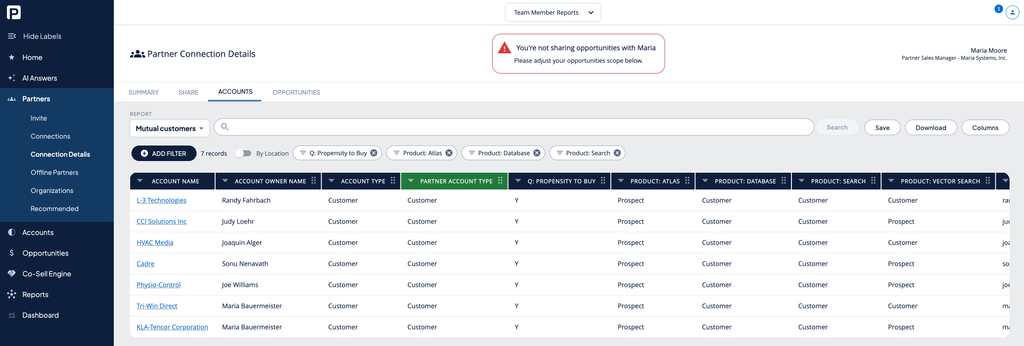
- Click View on the Mutual Customers, Potential New Logos, or Help My Partner stat cards on the Summary sub-navigation tab to go directly to that report.
- Click the Accounts sub-navigation tab to land on the All Matched Accounts report. Open the Report dropdown to switch to a different report.
- Click Add Filter to narrow down the account list to match your campaign criteria (location, industry, existing products installed, propensity to buy, etc.).
- Click the Columns button to move relevant data side by side or hide columns.
Build a multi-partner list from Ecosystem reports
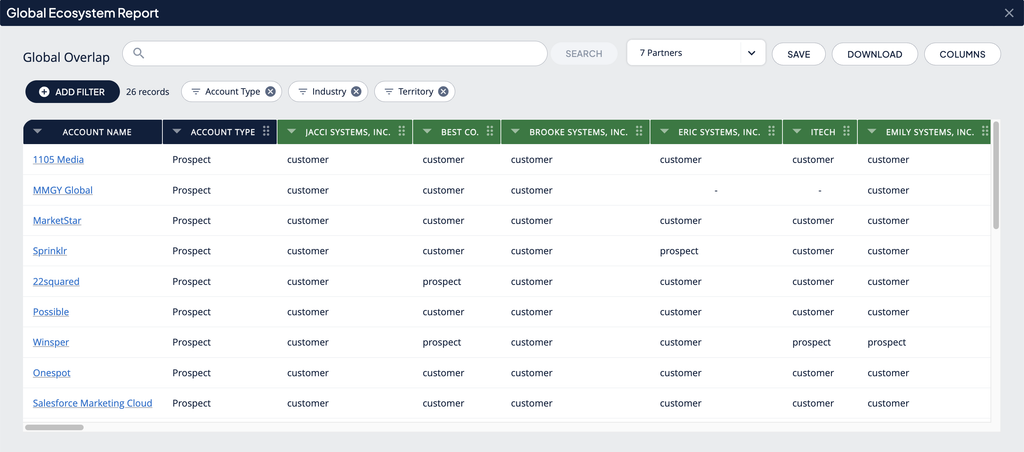
- Click Reports in the left sidebar, then click Ecosystem.
- Click View on the report tile you want to use (for example, Global Overlap, Mutual Customers, or Potential New Logos).
- Click Add Filter to narrow the list to match your campaign criteria.
- Click the Columns button to move relevant data side by side or hide columns.
Because Ecosystem reports pull data across every connected partner at once, saving results from here creates a multi-partner Action List instead of a single-partner one.
Save as an Action List
When your list is ready:
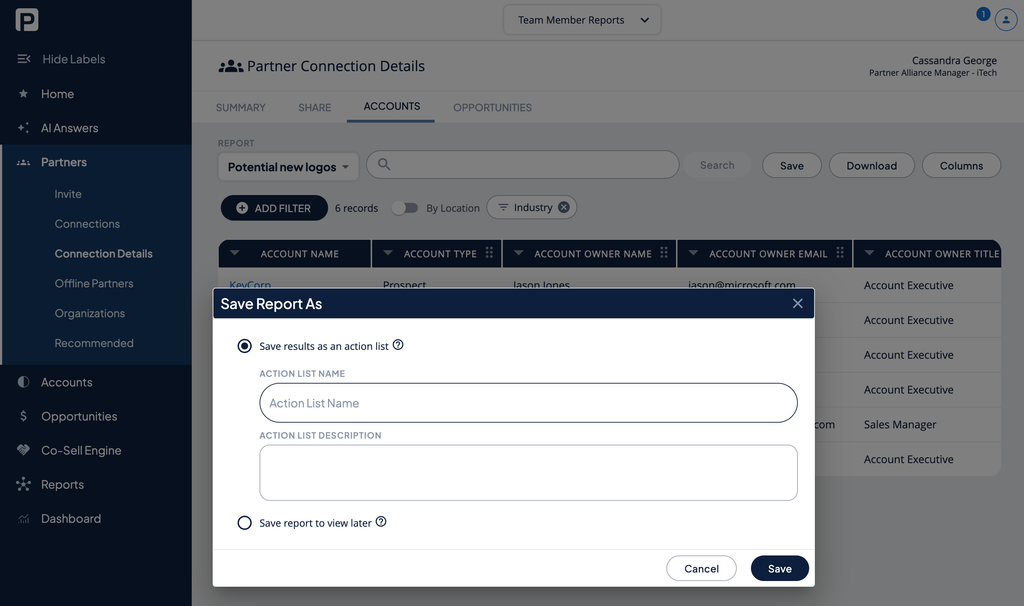
- Click the Save button.
- In the Save Report As pop-up, select Save results as an action list.
- Enter an Action List Name and Action List Description, then click Save.
Note: Action Lists have a maximum size of 10,000 accounts. If your filtered results exceed that, narrow your filters before saving. Action Lists also expire 90 days after creation.
Your Action List is now saved as a point-in-time snapshot of those accounts. The attribution clock starts: PartnerTap will track new pipelines created on those accounts from this point forward. Your list is available immediately in the Co-Sell Engine to run a play against.
Save a report to view later
In the Save Report As pop-up, you can also select Save report to view later. This saves your filter configuration so you can re-run the same filtered view in the future. The account data refreshes each time you open it. This option does not create an Action List and does not start attribution tracking. Use it when you want to revisit a filter combination regularly without committing to a co-sell play yet.
Access your saved reports
Saved reports are accessible from Reports in the left sidebar. Select View on the Saved tile. You can open, modify, or remove saved reports at both individual and organizational levels.
Want to scale?
See the leading multi-partner co-selling platform.
Invited by a partner?
Sign up for a free PartnerTap account.