
Set account share settings
PartnerTap account sharing rules let you define exactly which accounts and fields each connected partner can see in real time, without spreadsheets.
How sharing rules work
Three controls define what a partner sees on your matched accounts:
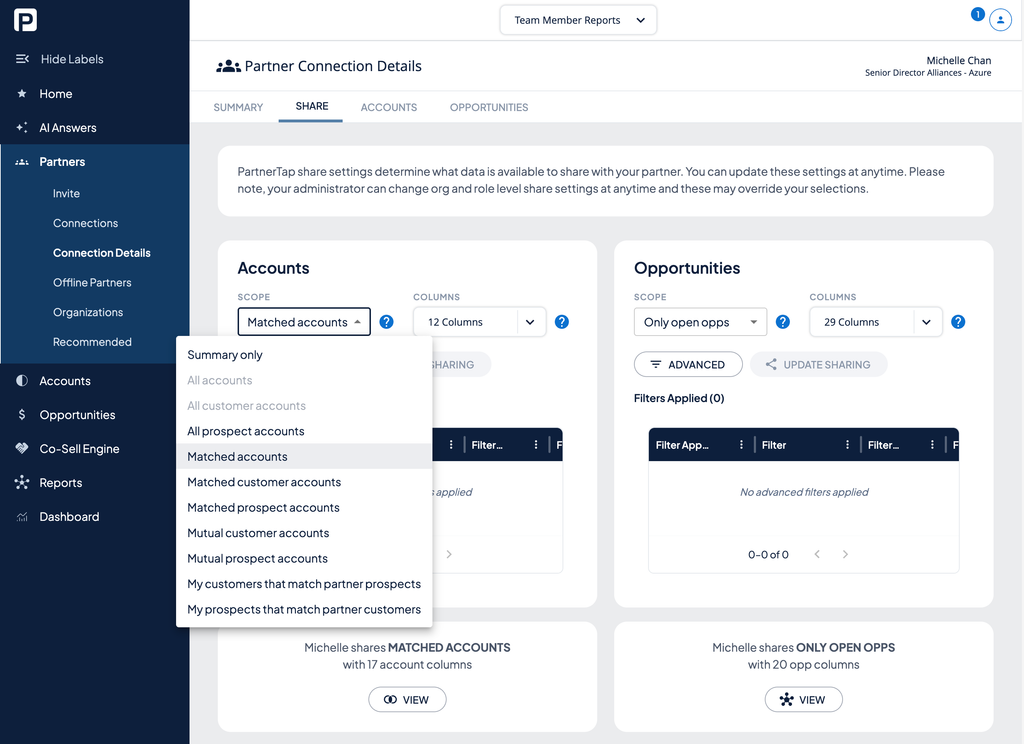
- Scope: Which account records are visible. All accounts, matched accounts only, mutual customers only, and many more (opens in a new tab).
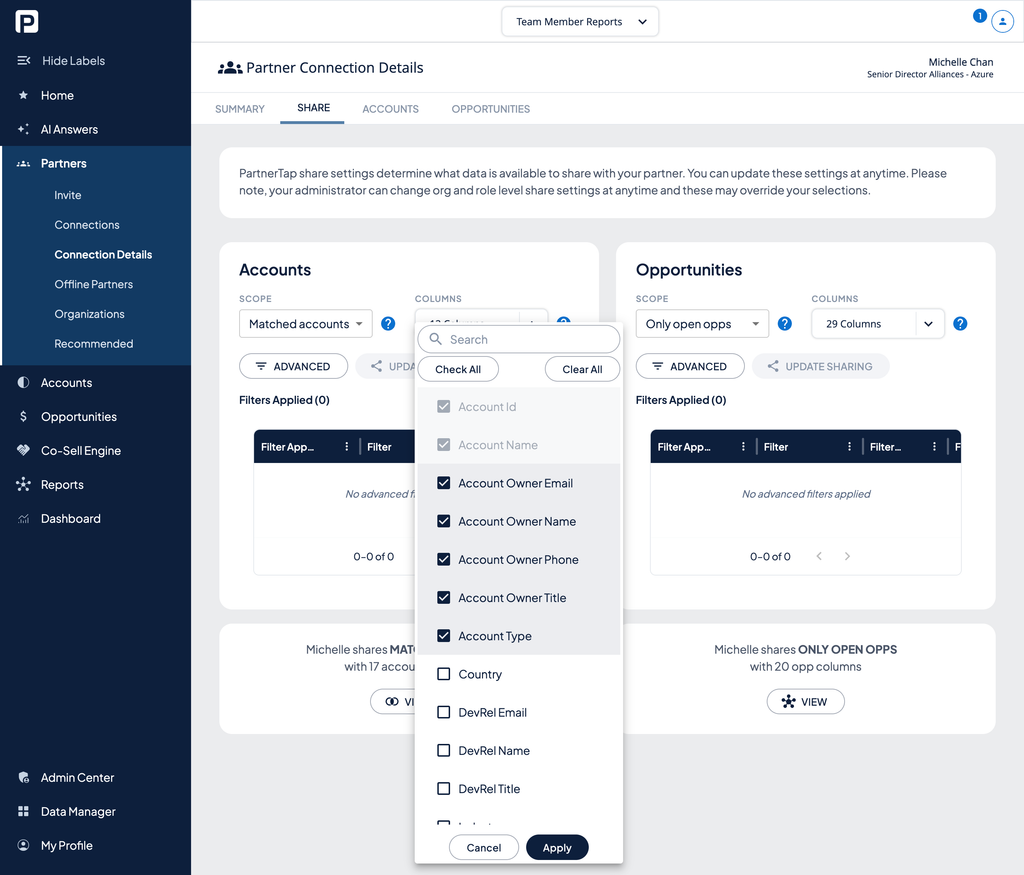
- Columns: Which fields on those accounts are visible. Your administrator pre-defines which columns may be shared with partners and you select from those options here.
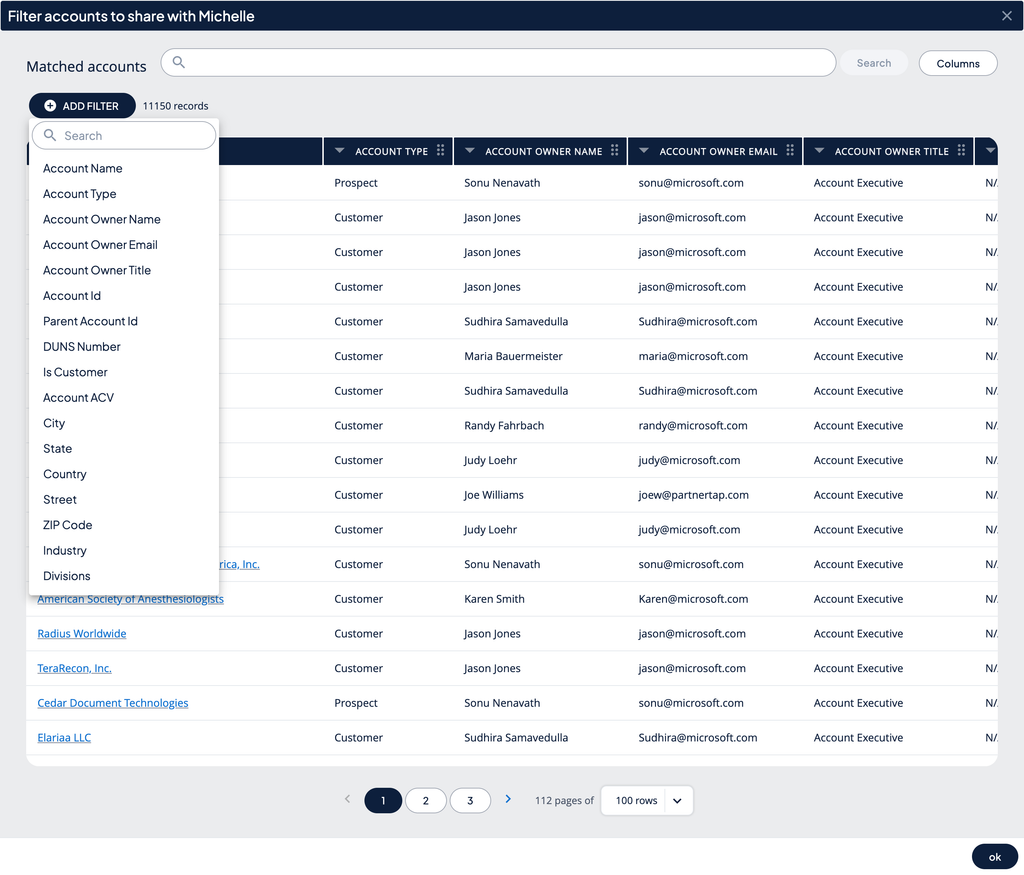
- Filters: Optional conditions that narrow which records within your chosen scope are shared. For example, share only accounts in a specific territory, industry, or with a specific product.
These settings are per partner.
Set your account scope
- Click Partners in the left sidebar.
- Click Connections and find the partner you want to configure.
- Click View on their tile.
- Click the Share sub-navigation tab.
- Under Accounts, open the Scope dropdown and select your sharing scope.
- Click the question mark icon next to the Scope field for a full description of each option.
Choose which columns to share
- Open the Columns dropdown.
- Select the fields you want your partner to see on matched accounts.
Apply advanced filters
Filters let you limit which accounts are shared within your chosen scope.
- Click Advanced in the Accounts section.
- Click Add Filter.
- Choose a field to filter on, for example Territory, Industry, or a specific product.
- Set the condition and value.
- Add as many filters as needed. Filters work as AND conditions.
- Click OK in the bottom-right corner.
Save and apply your settings
Click Update Sharing to apply.
Note: Your administrator can set org-wide sharing defaults that may affect your available options. If you cannot select certain scopes or see certain fields, contact your administrator.
Want to scale?
See the leading multi-partner co-selling platform.
Invited by a partner?
Sign up for a free PartnerTap account.