
Personalize your user profile
Once you log in, the first thing we recommend is to go into your profile, update your personal information, and add a profile photo so your partners know it’s you when you invite them to connect.
Update your profile information
To update your profile:
- Click My Profile at the bottom of the left sidebar (below Admin Center and Data Manager).
- Click the Edit button in the top right corner.
- To add or update your profile photo, click the camera icon in the profile photo circle and upload a photo from your device.
- Add your contact information, job title, and more.
- Confirm everything is correct.
- Click Save.
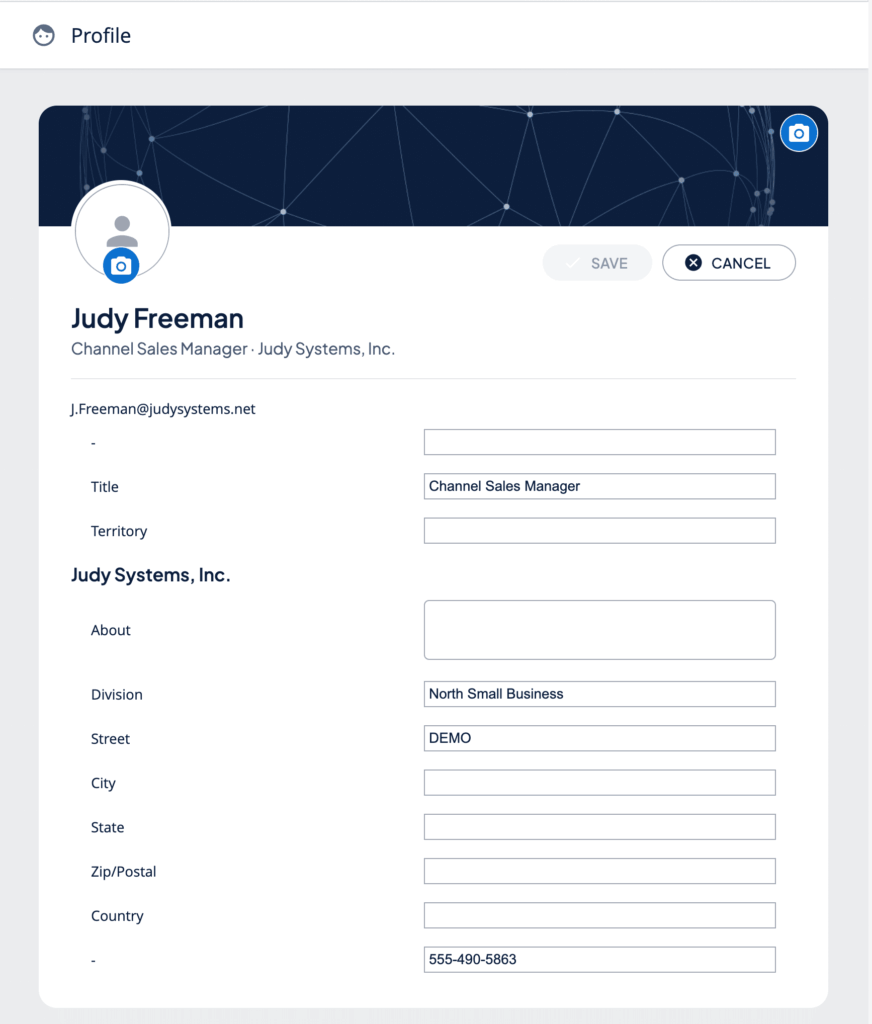
Note: A profile photo is not required but is strongly recommended. Partners are more likely to accept an invitation from a profile with a recognizable photo.
Review your notification preferences
- Click My Profile at the bottom of the left sidebar (below Admin Center and Data Manager).
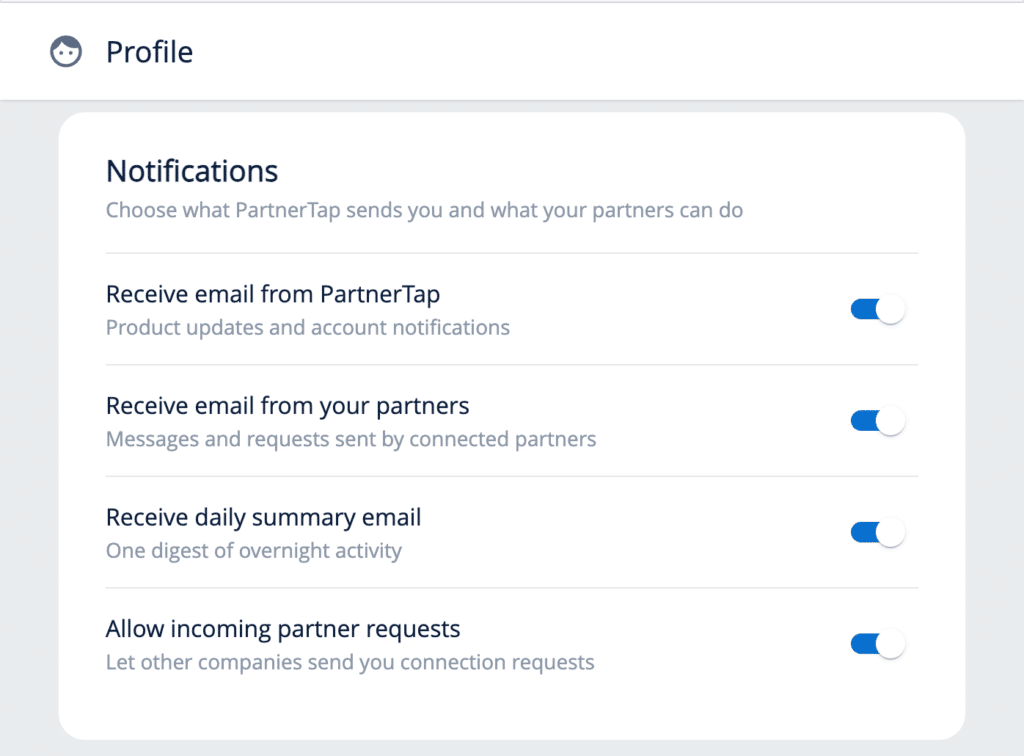
- Scroll down to the Notifications section.
- Confirm that Allow incoming partner requests is toggled on. If this is turned off, partners who try to invite you to connect will not be able to reach you.
Want to scale?
See the leading multi-partner co-selling platform.
Invited by a partner?
Sign up for a free PartnerTap account.