
Sync your CRM
Connecting your CRM is the recommended way to bring your base account data into PartnerTap. Once connected, your account and opportunity data syncs automatically, so your match results always reflect your current pipeline without manual uploads.
Before you start
Confirm you have admin access to your CRM. If your team uses Salesforce, complete the ECA installation step below before connecting. If your team uses Microsoft Dynamics or HubSpot, you can connect directly with no additional setup.
Salesforce organzations: install the ECA first
Salesforce organizations must install the PartnerTap ECA and create a dedicated integration user before syncing. Best practice: give this integration user access to only the accounts and opportunities you want to pull into PartnerTap, then use its username and password when connecting below. See the Salesforce Data Sync Guide (opens in a new tab) for full setup instructions.
Connect your CRM
- Click Data Manager in the left sidebar.
- On the Data Manager page, find the Connect CRM tile and click Connect.
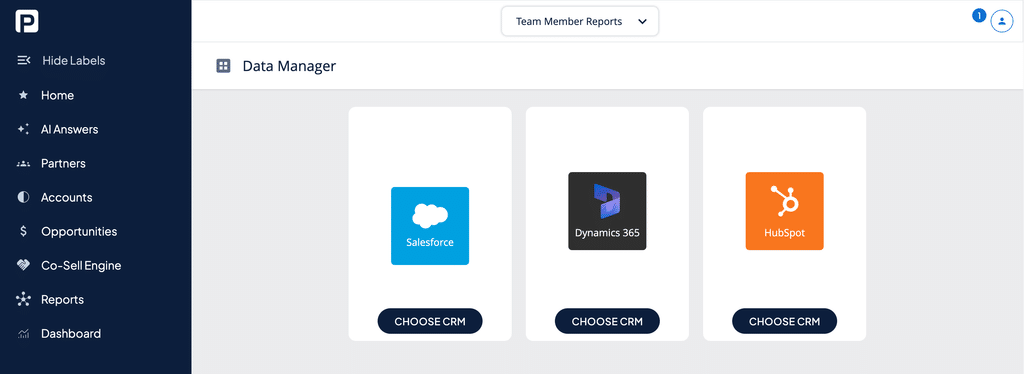
- Locate the tile for your CRM (Salesforce, Microsoft Dynamics, or HubSpot) and click Choose CRM.
- You will be redirected to your CRM’s SSO login page. Log in with the dedicated integration user credentials if your administrator set one up, or your personal CRM credentials.
- Select the record types you want to sync, accounts, opportunities, or both. For Salesforce, this step also opens a short field-mapping wizard, see below.
- Once authenticated and synced, PartnerTap begins processing your base account data. You will receive an email when the sync is complete.
CRM-specific setup notes
- Salesforce: As part of connecting, you’ll map your account and opportunity fields. Required fields are locked; everything else can be overridden or turned off, and you can add custom fields as you go. The wizard walks you through each step. After your initial sync, you can edit this mapping anytime from the CRM Sync Summary page (Data Manager > CRM Sync Summary), using the Edit Account Fields and Edit Opportunity Fields buttons. Changes take effect on your next scheduled sync.
- Microsoft Dynamics: Syncing requires specific Azure AD roles (Global Administrator, or both Application Administrator and Dynamics 365 Administrator). See the Microsoft Implementation Guide (opens in a new tab) for role assignment and troubleshooting login issues.
What syncs and what does not
- Syncs: Account records, opportunity records, and the fields your administrator has mapped.
- Does not sync:
- Contact or lead records. PartnerTap only accepts account and opportunity data.
- Many-to-one data such as account team members or opportunity line items. PartnerTap syncs one-to-one account and opportunity records only. Contact your CSM to discuss custom implementation options.
Keeping your base account data current
Once connected, your CRM sync runs automatically on an ongoing basis so your match results always reflect your latest pipeline. No manual re-upload is needed.
Want to scale?
See the leading multi-partner co-selling platform.
Invited by a partner?
Sign up for a free PartnerTap account.