
Set sharing policies
Account mapping is how your team and your partners identify the best accounts and opportunities to work on together. PartnerTap gives you full control over what data you share with each partner: sharing scope and columns are set on a per-partner basis, and org-wide Security Controls let you protect sensitive data across every partner connection.
How sharing works at two levels
PartnerTap gives you two layers of sharing control. Security Controls, found in the Admin Center, apply org-wide across every partner connection — for example, blocking a sensitive field entirely or excluding a company from ever partnering with your team. Sharing scope and columns, found on each Partner Connection’s Share tab, apply per partner and define exactly what that specific partner can see.
What to decide before your team connects with partners
Before your team starts connecting with partners, decide: which record scope you want to share by default (for example, all accounts, only matched accounts, or only mutual customers), which columns of data you’re comfortable sharing, and whether any accounts, partners, or fields should be excluded from sharing altogether.
Set your account and opportunity sharing scope per partner
The step-by-step process for setting scope, columns, and filters on a specific partner connection is covered in Set Account Sharing Rules (opens in a new tab) and Set Opportunity Sharing Rules (opens in a new tab).
Advanced security controls
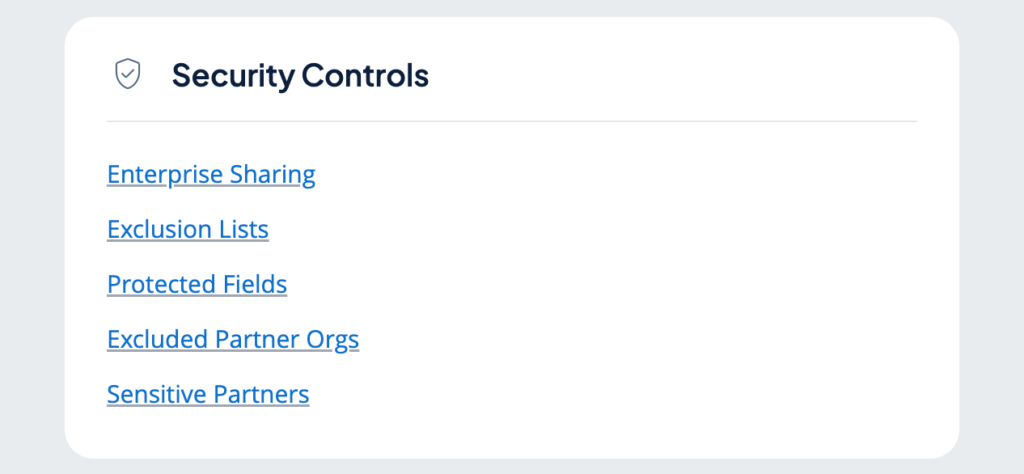
Org-wide Security Controls live in Admin Center > Security Controls. Each control is configured by contacting support@partnertap.com (opens in a new tab):
- Enterprise Sharing: Set the default account and opportunity sharing rules applied when rep-to-rep co-selling is turned on with a strategic partner.
- Excluded Partner Orgs: Identify companies that should never be able to partner with your team on PartnerTap.
- Exclusion Lists: Add sensitive accounts to an exclusion list so they are never pulled into PartnerTap or shared with any partner.
- Protected Fields: Block specific sensitive fields from ever being pulled into PartnerTap.
- Sensitive Partners: Map with a sensitive partner while ensuring their matched account data is never pushed back into your CRM.
Hide or flag columns with the Custom Column Editor
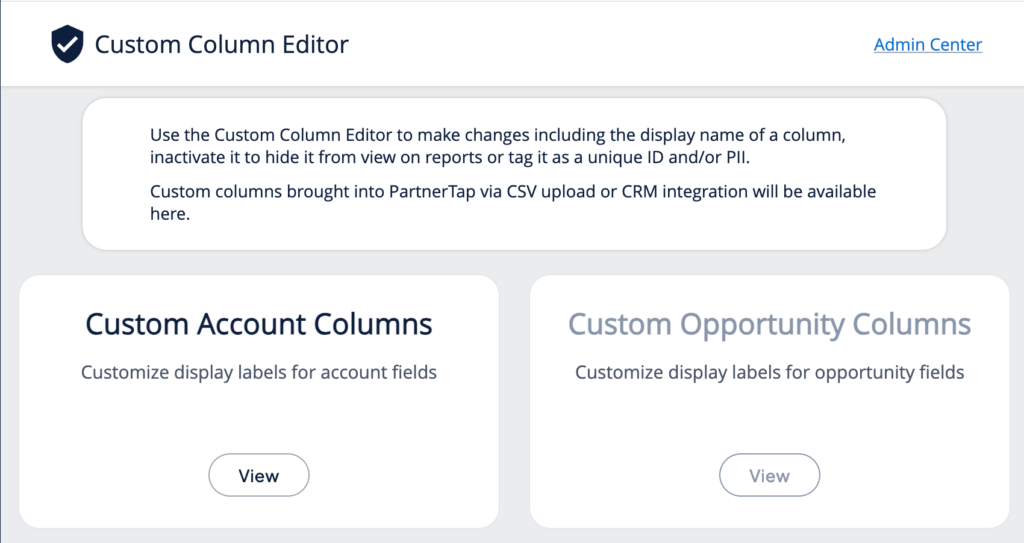
The Custom Column Editor is a self-service way to control column-level visibility, separate from the Security Controls above. Any column brought into PartnerTap via CSV upload or CRM integration can be hidden from reports or flagged as PII directly by your team, without contacting support.
- Navigate to Admin Center > Data > Custom Column Editor.
- Click View on either Custom Account Columns or Custom Opportunity Columns, depending on which field you want to manage.
- Click Edit, then tick the Column Is Hidden box to remove a column from view on reports, or the Column Is PII toggle to flag it as personally identifiable information.
- You can also mark a column as Column Is Unique ID if it should be treated as a unique account or opportunity identifier.
- Click Save.
Want to scale?
See the leading multi-partner co-selling platform.
Invited by a partner?
Sign up for a free PartnerTap account.