
Upload data via CSV
If you are not ready to connect your CRM, uploading a CSV file is the fastest way to get your account data into PartnerTap. This article walks you through preparing your file, navigating the upload wizard, and avoiding the most common mistakes that cause uploads to fail or produce incorrect matches.
Prepare your file: rules before you upload
- The file must be a .csv. Multi-tab workbooks must be saved as separate .csv files.
- Every column header must have a name.
- Delete the 10-15 columns following the last column with data to avoid upload errors caused by random values in those cells.
- Include as much account detail as possible to improve match results.
Add Accounts
- For column formatting guidance, review the CSV Guide (opens in a new tab) and download the Sample Sheet (opens in a new tab).
- Click Data Manager in the left sidebar.
- On the Data Manager page, find the Add Accounts tile under the “Bring company data into PartnerTap” section and click Upload:
Drag and drop your .csv file, or click Select CSV File. Best practices: required columns are Account Name and Account Type; recommended columns include a unique account identifier such as CRM ID, PRM ID, or DUNS number to improve match accuracy.
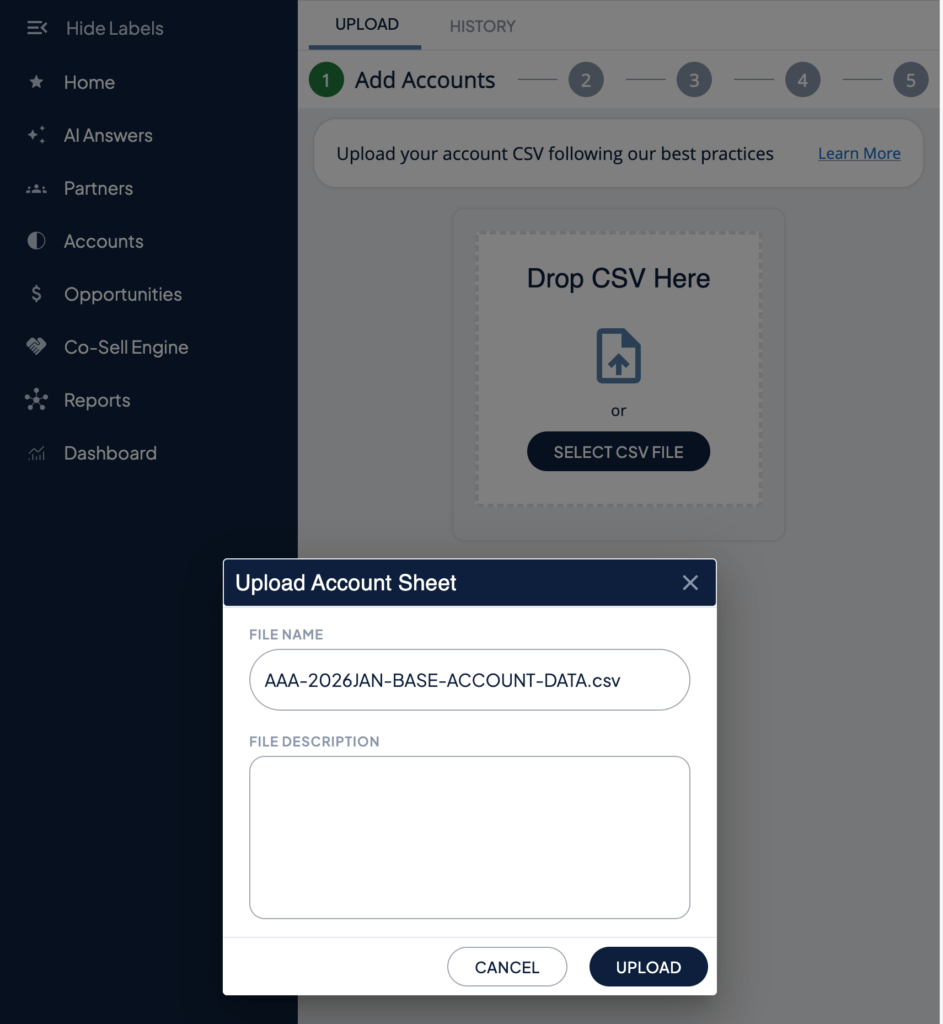
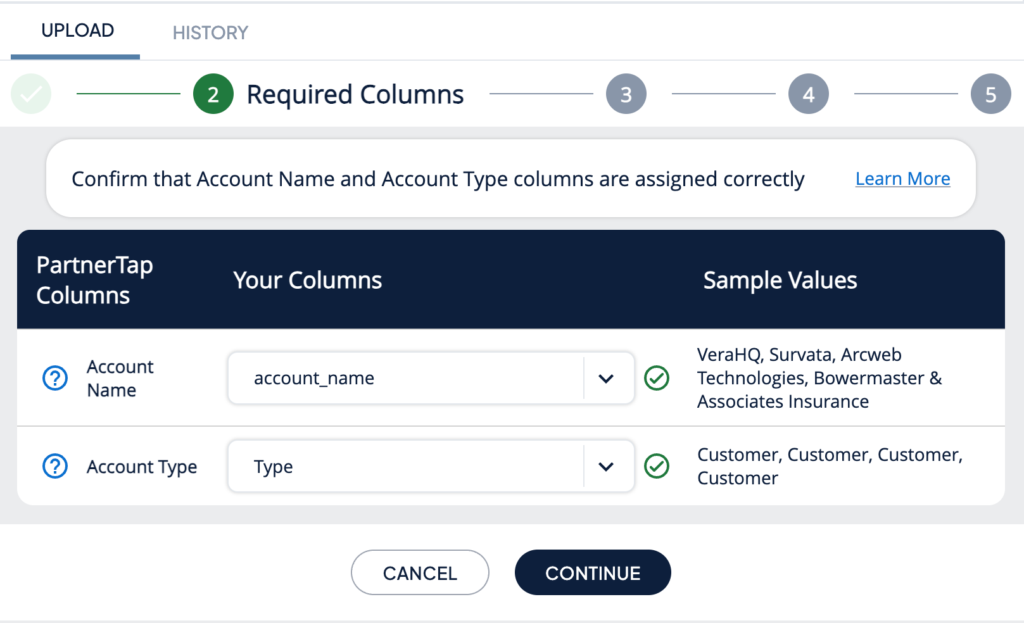
PartnerTap maps the columns from your file to its required standard columns: Account Name and Account Type. Columns that map automatically show a sample value from your file so you can confirm the mapping is correct; use the dropdown menus to manually map any column PartnerTap could not match.
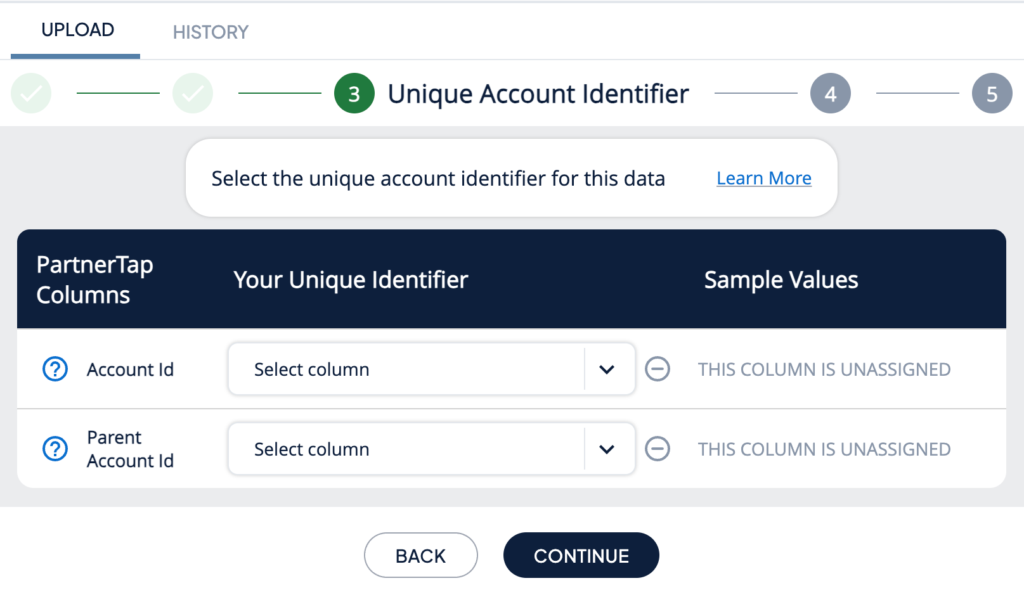
Map the Account Id and Parent Account Id columns from your file, if you have them. This unique identifier keeps your partner-sheet links intact across future uploads and improves attribution accuracy. If you skip this step, PartnerTap will warn you that partner-sheet-link continuity and attribution accuracy may be affected on your next upload.
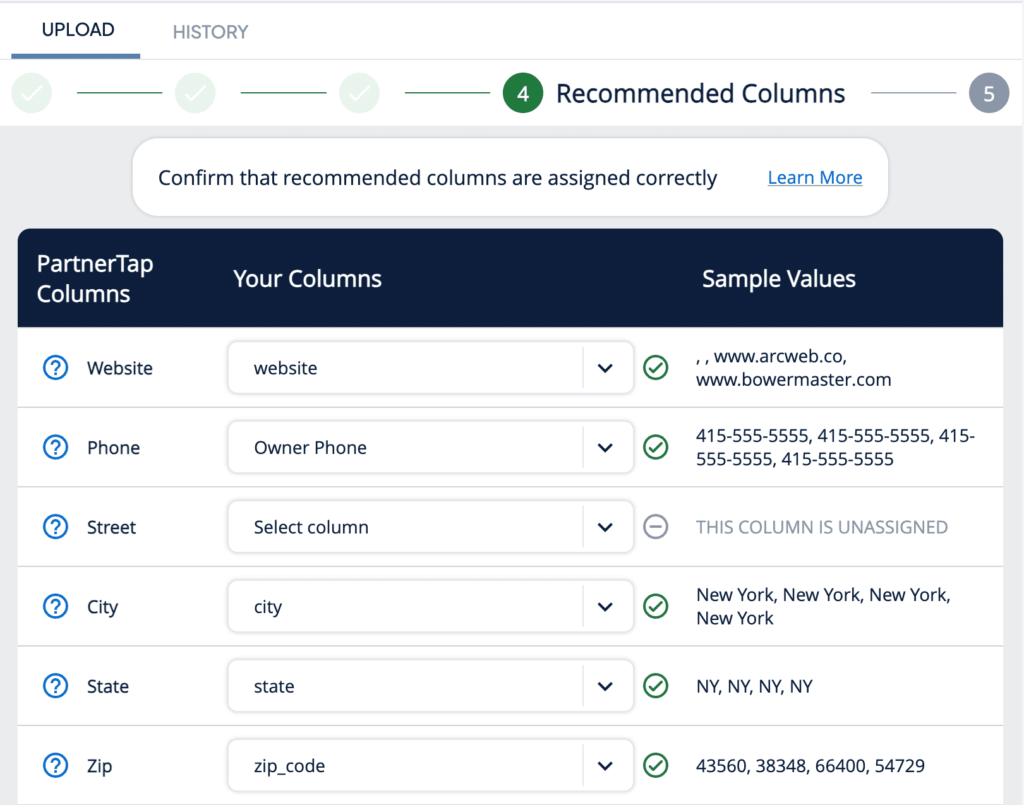
Use the dropdown menus to map any recommended columns that did not map automatically. Recommended columns include State, Zip, Country, Owner Name, Owner Email, Owner Title, Owner Division, Tax Id, Duns, Industry, Employee Count, and Territory.
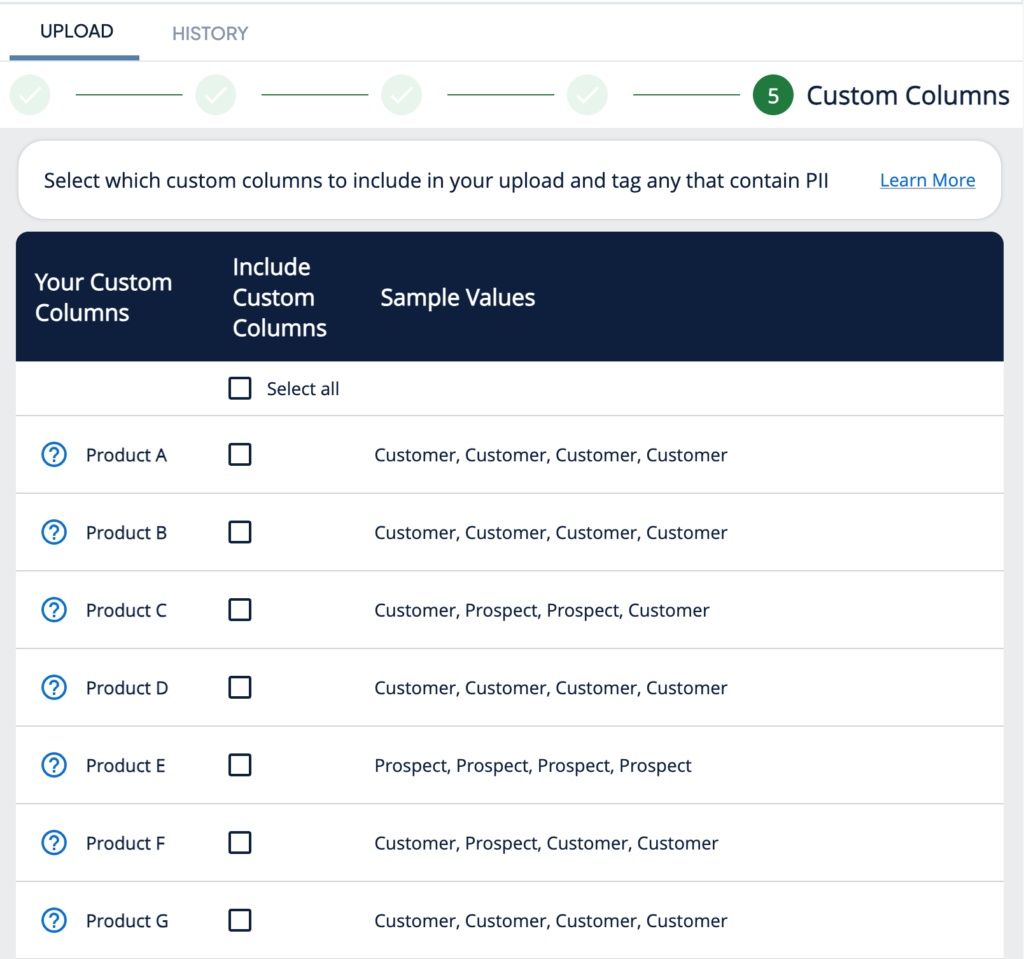
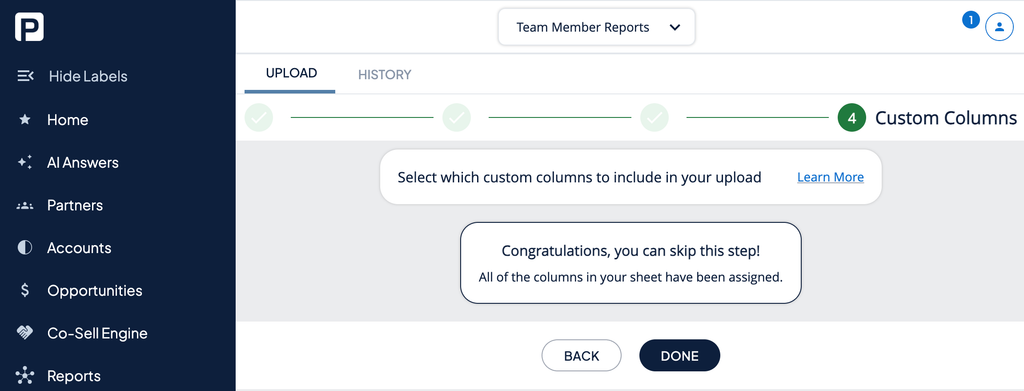
Select any additional custom columns to include from your sheet, such as product usage flags or account-tier fields. These are not used for account matching but can be shared with partners and used for filtering. Use “Select all” to include every mapped custom column, and note that any column flagged as containing PII is called out before you finish.
Add opportunities
Opportunity data is optional, but it lets your partners see your active pipeline on matched accounts. Adding opportunities follows the same wizard pattern as adding accounts.
- For column formatting guidance, review the CSV Guide (opens in a new tab) and download the Sample Sheet (opens in a new tab).
- Click Data Manager in the left sidebar.
- On the Data Manager page, find the Add Opportunities tile under the “Bring company data into PartnerTap” section and click Upload:
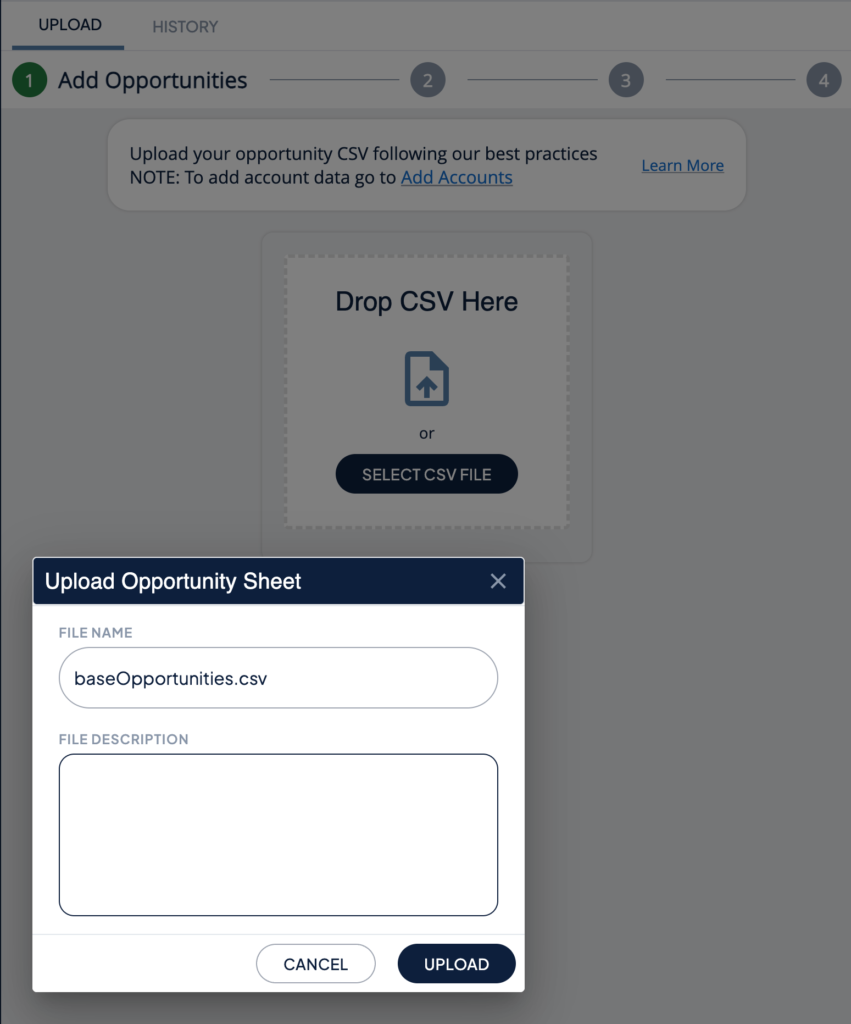
Drag and drop your .csv file, or click Select CSV File. Note: Account-level data comes from the Add Accounts upload, so make sure your accounts are uploaded first.
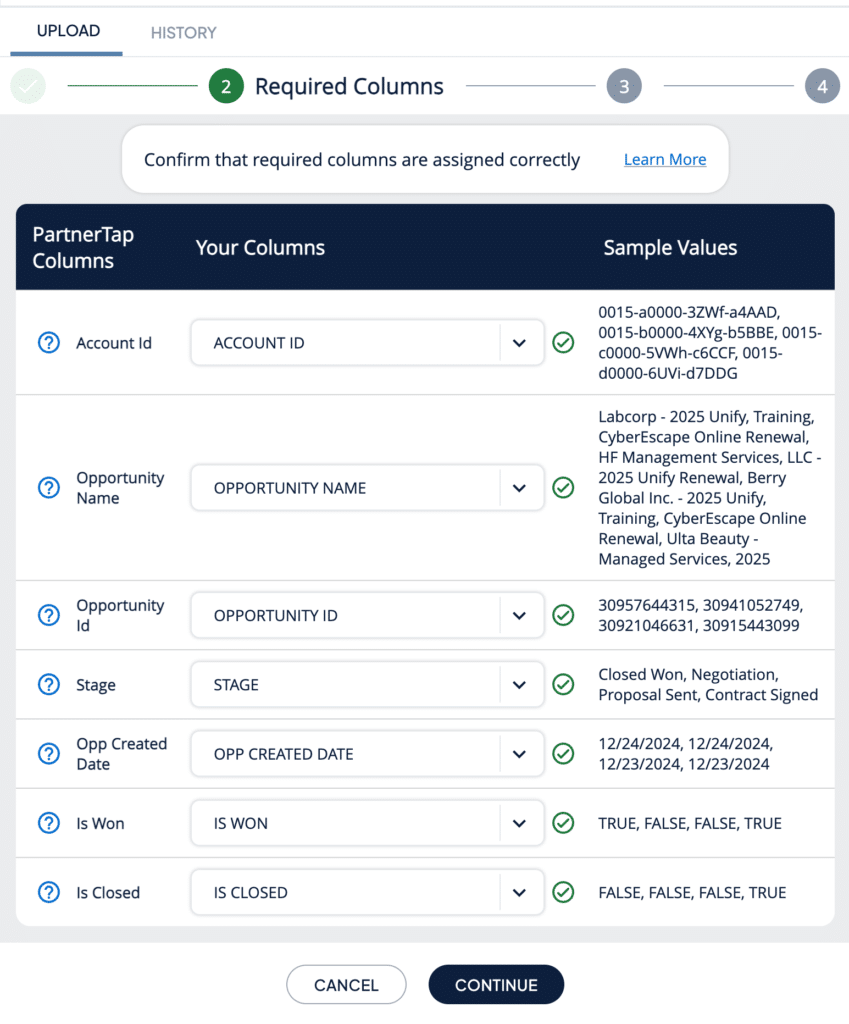
PartnerTap maps your file’s columns to its required standard columns: Account Id, Opportunity Name, Opportunity Id, Stage, Opp Created Date, Is Won, and Is Closed. Use the dropdown menus to manually map any column that did not map automatically.
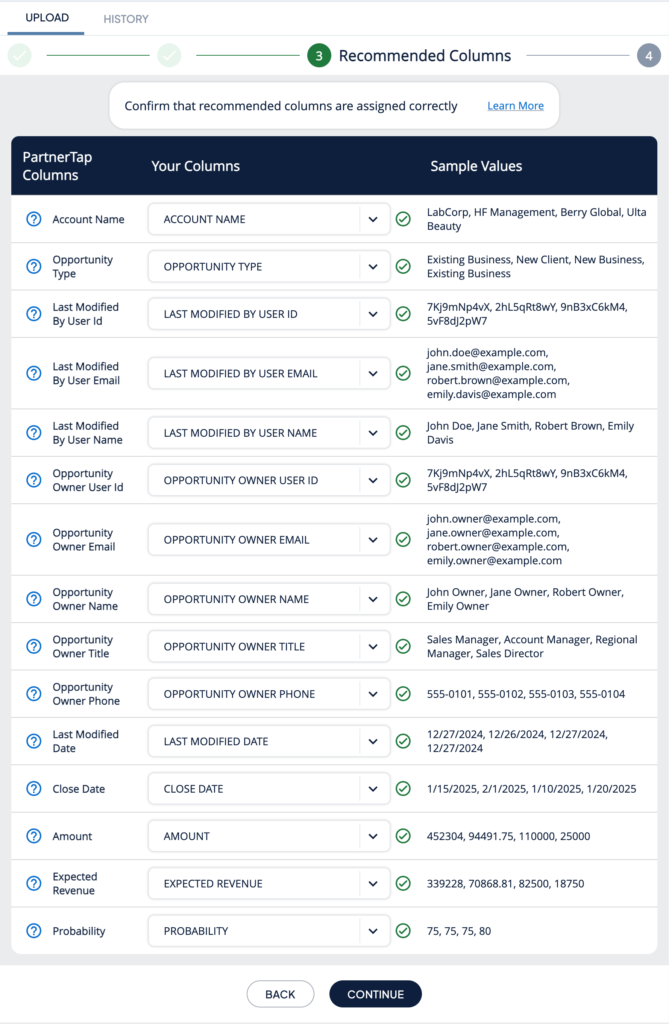
Use the dropdown menus to map any recommended columns that did not map automatically, such as Account Name, Opportunity Type, Last Modified By User Id/Email/Name, Opportunity Owner User Id/Email/Name/Title/Phone, Last Modified Date, Close Date, Amount, Expected Revenue, and Probability.
Select any additional custom columns to include from your sheet. If every column in your file is already mapped to a standard or recommended column, PartnerTap will let you know there is nothing left to map and you can skip this step.
Update your base account data
See the Refreshing Base Data Guide (opens in a new tab) for details on refreshing existing sheets. To add another sheet or refresh your base account data, return to Data Manager and repeat the upload steps. PartnerTap will notify you by email when each upload is complete.
Want to scale?
See the leading multi-partner co-selling platform.
Invited by a partner?
Sign up for a free PartnerTap account.